How can I reset and recover a user’s login password?
This guide explains the steps to reset (Change) and recover (Forgot) your login password.
Steps to Reset Password or Change or Forgot Password
1. Login as Agency or Client:
Log in as an Agency or Client account.
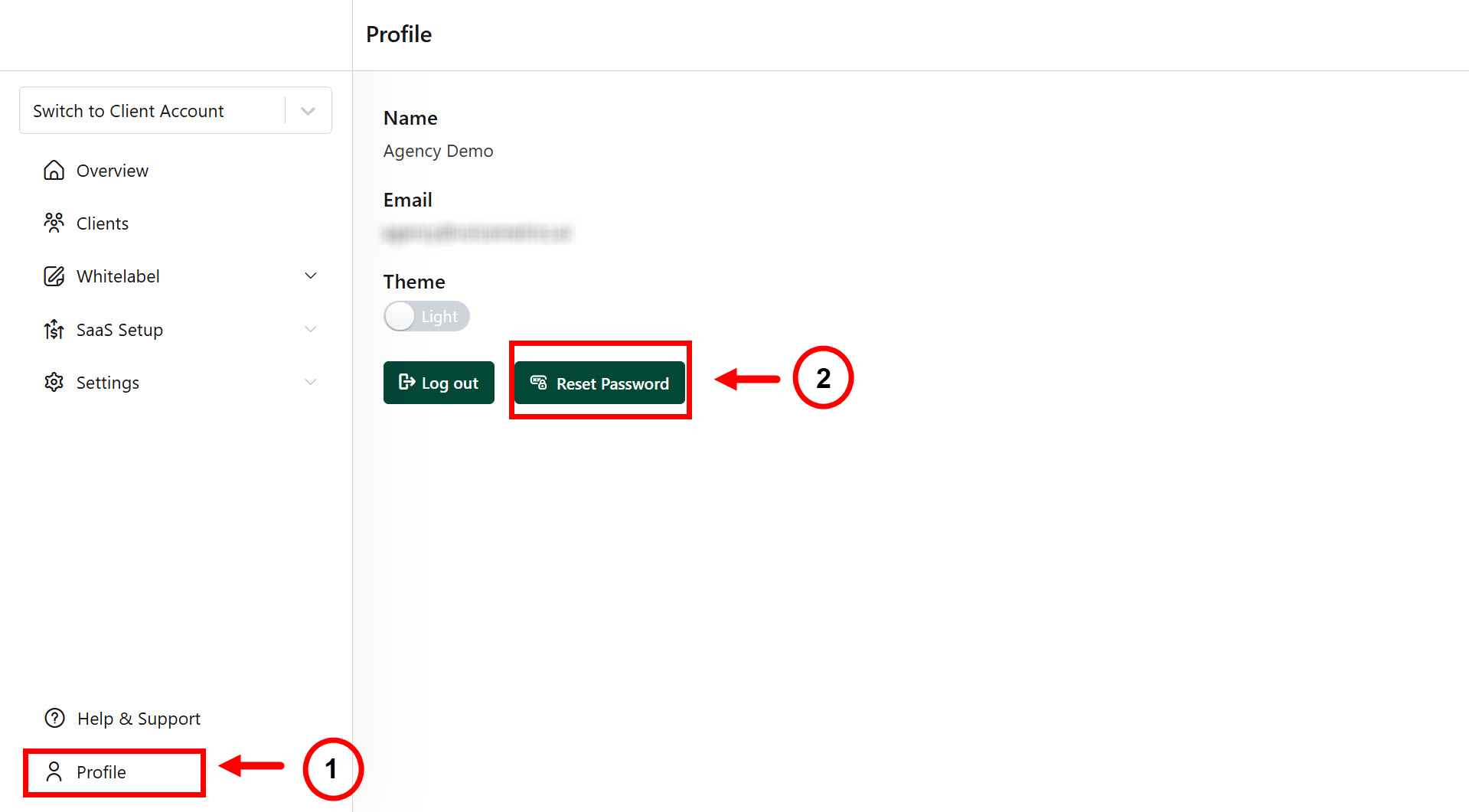
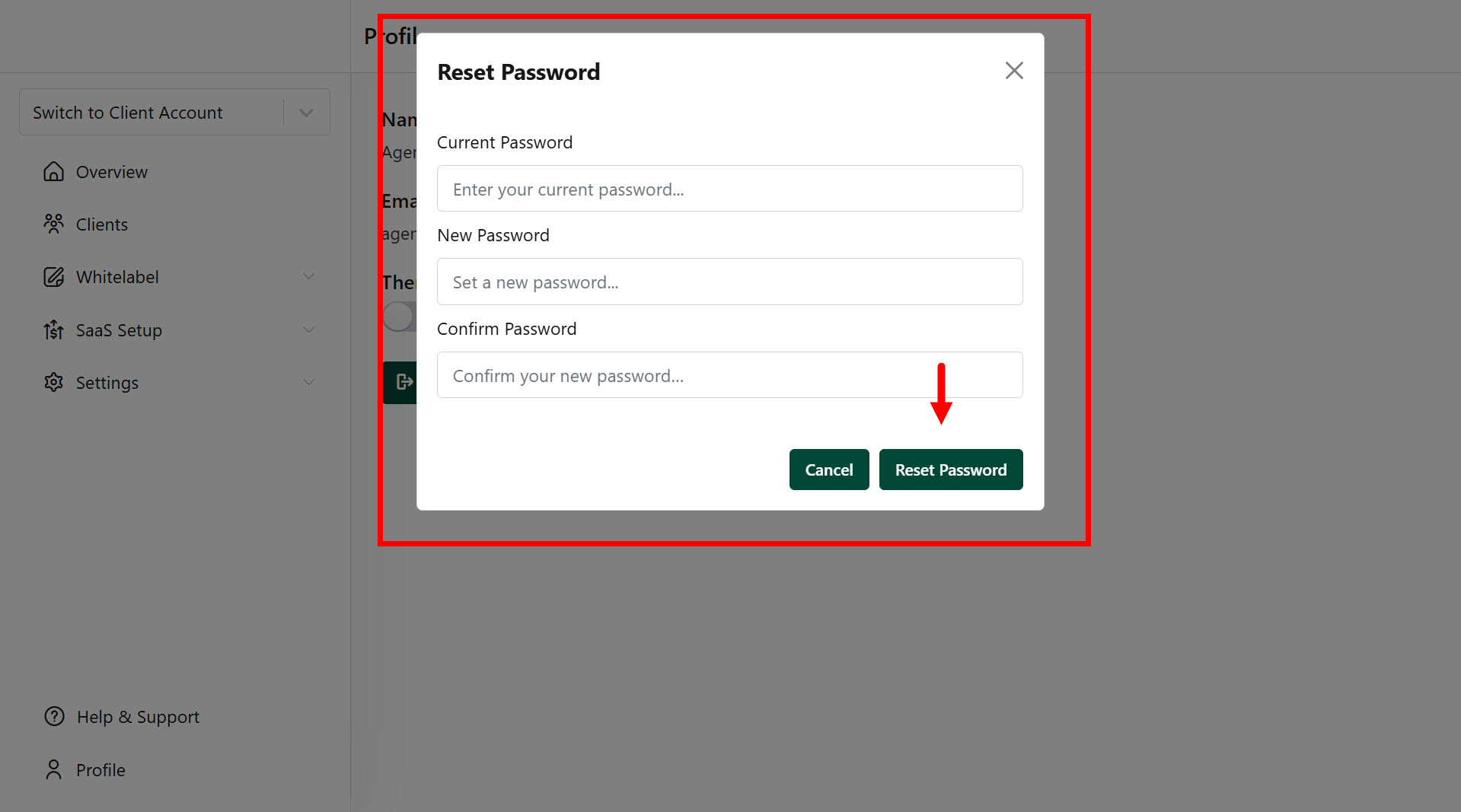
Tap on Profile (bottom left) menu and click on the Reset Password button.
Steps to Recover Password or Forgot Password
1. Access the Login Page:
Navigate to the Login Page of your account.
Click on the Recover Password link.

2. Submit Login ID:
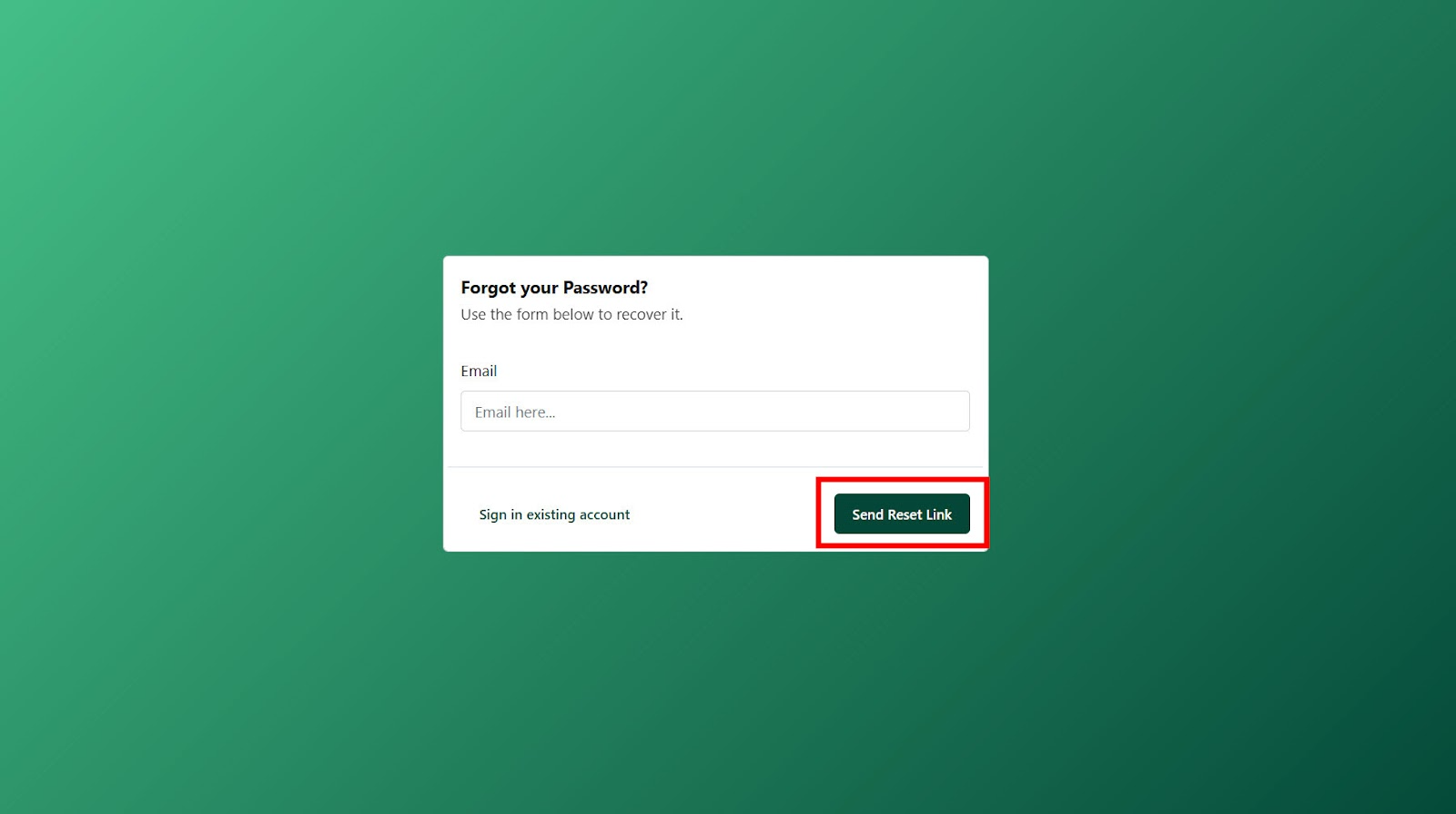
On the Forgot Password page, enter your account login ID (email address).
Click the Reset Link button.
3. Check Your Email:
You will receive an email with a password reset link.
4. Complete the Reset Process:
Open the email and click the Reset Password link.
Create a new password.
5. Log In:
Use your email address and the newly created password to log in.
Was this article helpful?
That’s Great!
Thank you for your feedback
Sorry! We couldn't be helpful
Thank you for your feedback
Feedback sent
We appreciate your effort and will try to fix the article